

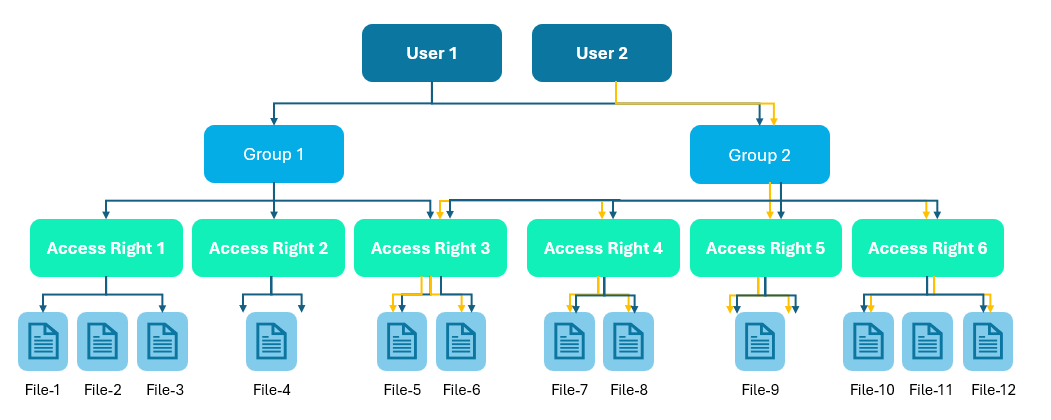
The Access Rights and Groups sections are visible only to users with Admin privileges. To enable this access, a Super Admin must assign Admin rights while adding a user in Global Settings → User Console → Add User by turning the ‘Admin’ toggle ON. This ensures that only authorized administrators can configure security and governance settings across the platform.
Access Rights
The Access Rights feature in AXOMA allows administrators to define and control the permissions associated with different user groups. This ensures that every user or group interacts with the application in a secure and role-appropriate manner. This feature helps maintain enterprise-grade security and clarity in user responsibilities by enforcing granular permission controls at the group level.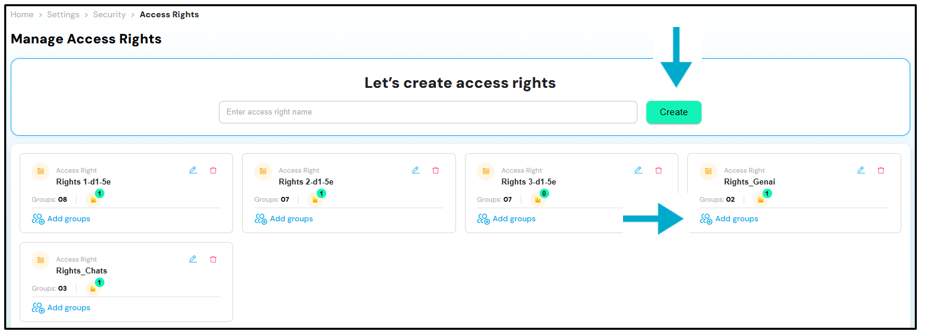
Key Capabilities:
- Create Access Rights: Define custom permission sets (e.g., View Only, Edit, Publish, Admin) tailored to your organizational needs.
- Assign to Groups: Associate these access rights with one or more user groups to enforce consistent access controls.
- Edit or Delete: Easily update or remove access rights as your governance policies evolve.
Always create access rights before creating groups. These rights will be assigned during group setup.
Groups
The Groups feature, found under Settings > Security > Groups, provides a centralized way to manage user access and streamline app-level permissions.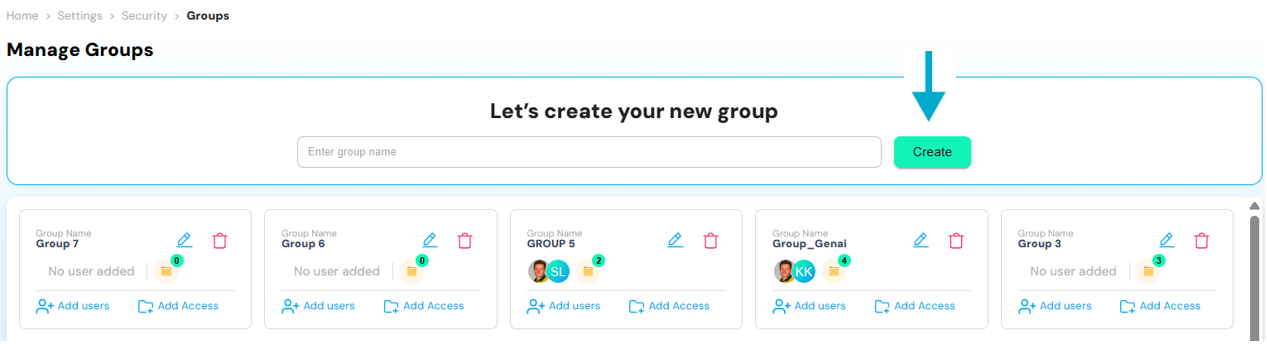
Steps to Create a Group
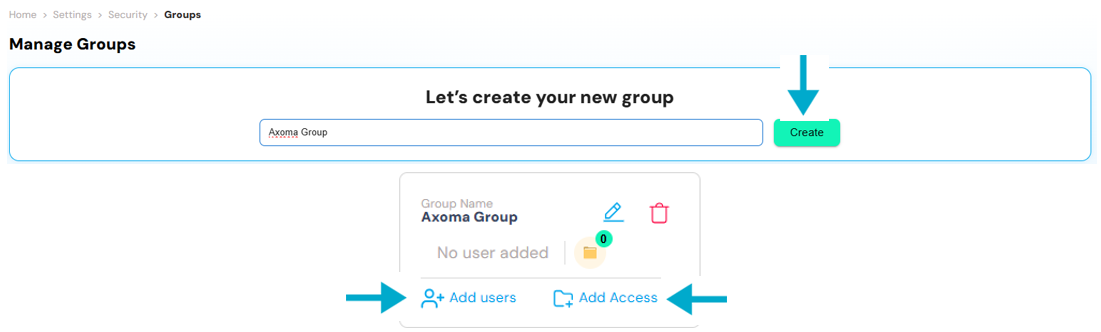
- Go to Settings > Security > Groups, click on Create Group, and provide a relevant name.
- Add Users to the Group Select and assign multiple users who should share the same level of access.
- Assign Access Rights Choose from the previously created access rights to define what permissions the group has across the platform.
Note: A group must be linked to access rights to function effectively in managing permissions.
This structured approach ensures consistent permission handling and simplifies app-level governance.
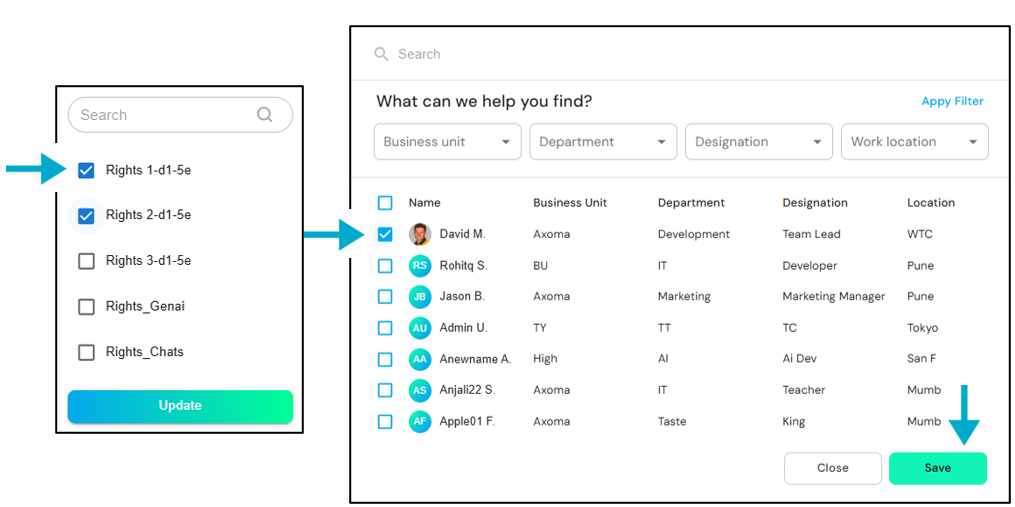
Key Capabilities
- Group Creation & Management: Create groups using any relevant name that reflects departments, roles, or teams (e.g., “Marketing”, “Developers”, “Managers”). You can easily edit or delete these groups as organizational needs change.
- User Assignment: Add multiple users to a group, enabling consistent access control without individually configuring permissions for each user.
- Access Rights Integration: Each group can be linked to specific access rights, ensuring that only authorized users can view, use, or modify certain applications or features.
Why It Matters?
Grouping users and assigning access rights ensures role-based security, enhances collaboration, and simplifies governance across the platform.Tags Management
The Tags section, located under Settings > Security > Tags, allows users to create and manage custom labels that help organize and filter applications efficiently.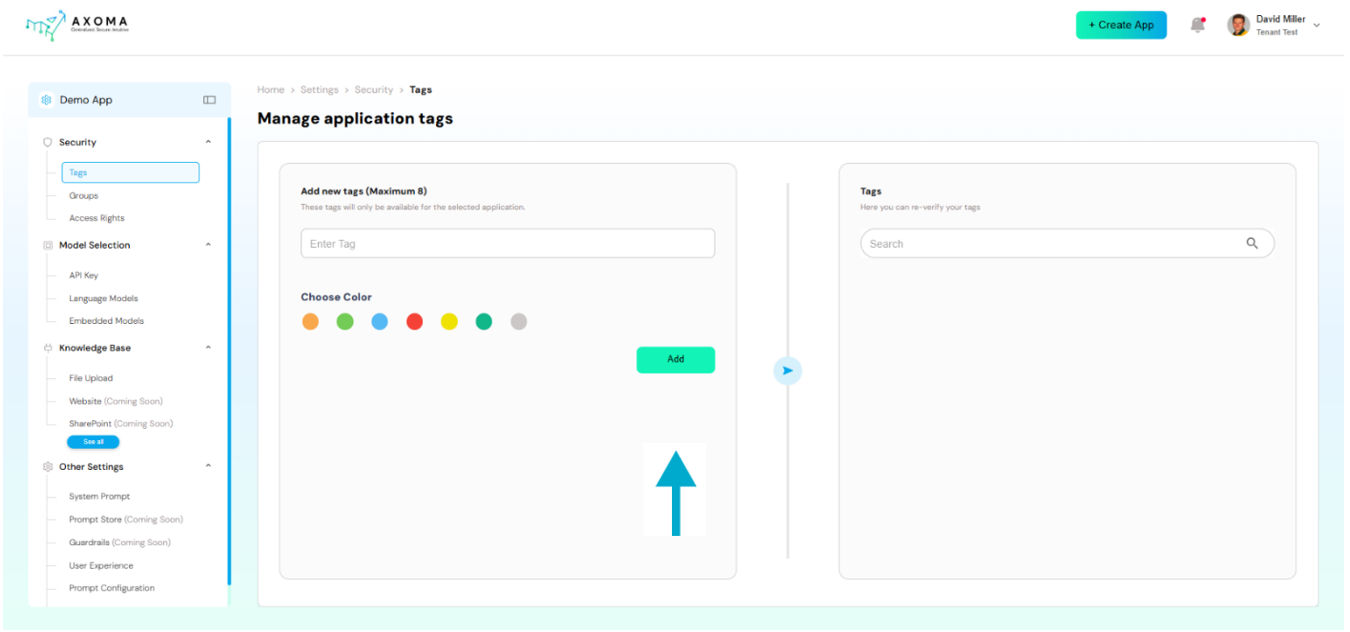
Key Capabilities
- Tag Creation: Users can create up to 8 custom tags per application. Each tag can be assigned a unique name and color for easy identification.
- Tag Management: Existing tags can be edited or deleted at any time, offering flexibility as app categorization evolves.
- Purpose: These tags can later be used to sort or filter applications based on specific criteria, streamlining navigation and access across large app libraries.